> ## Documentation Index
> Fetch the complete documentation index at: https://docs.pxxl.app/llms.txt
> Use this file to discover all available pages before exploring further.
# Compute & Scaling
> Adjust CPU, memory, replicas, persistent storage, and autoscaling for a Pxxl project.
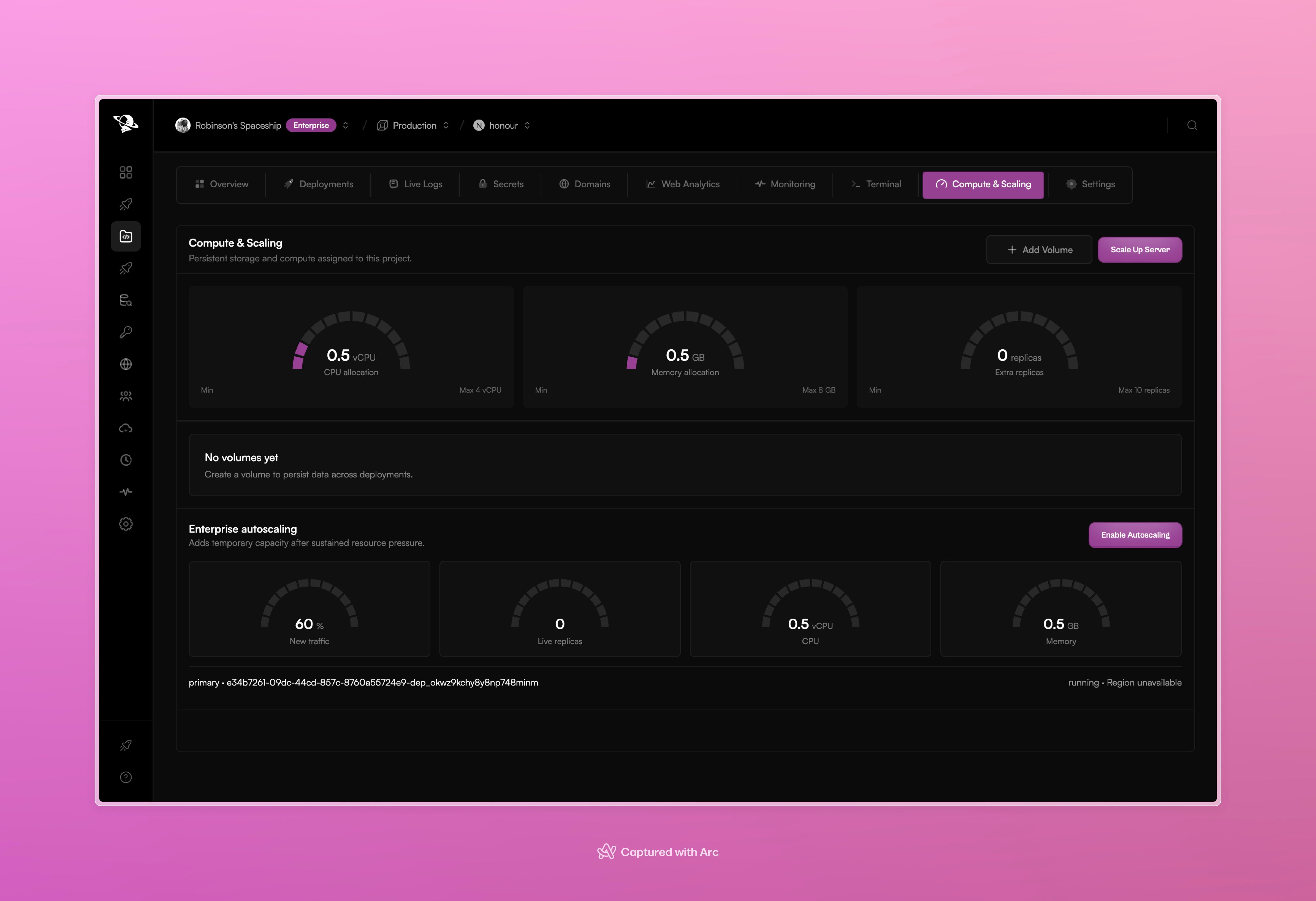
**Compute & Scaling** controls the resources assigned to a running project.
 ## Resource allocation
Use **Scale Up Server** to review and change:
* CPU allocation
* memory allocation
* additional runtime replicas
The screen shows the current value and the plan limit so you can see the effect before confirming a change.
## Persistent volumes
Use **Add Volume** when the application needs data to survive a new deployment or runtime restart.
Each volume has:
* a nickname
* a mount path inside the application
You can inspect, clear, or remove a volume. Clearing a volume deletes the data inside it, so use that action carefully.
## Autoscaling
Enterprise workspaces can enable autoscaling. Pxxl adds temporary capacity after sustained resource pressure and shows current traffic, live replicas, CPU, and memory in the autoscaling section.
Autoscaling is different from a manual scale change:
* **Manual scaling** changes the project's normal allocation.
* **Autoscaling** adds temporary capacity when its thresholds are reached.
Review [Monitoring](/projects/monitoring) before changing resources so the decision is based on observed usage.
This documentation is built and hosted on [Mintlify](https://mintlify.com), a developer documentation platform.
## Resource allocation
Use **Scale Up Server** to review and change:
* CPU allocation
* memory allocation
* additional runtime replicas
The screen shows the current value and the plan limit so you can see the effect before confirming a change.
## Persistent volumes
Use **Add Volume** when the application needs data to survive a new deployment or runtime restart.
Each volume has:
* a nickname
* a mount path inside the application
You can inspect, clear, or remove a volume. Clearing a volume deletes the data inside it, so use that action carefully.
## Autoscaling
Enterprise workspaces can enable autoscaling. Pxxl adds temporary capacity after sustained resource pressure and shows current traffic, live replicas, CPU, and memory in the autoscaling section.
Autoscaling is different from a manual scale change:
* **Manual scaling** changes the project's normal allocation.
* **Autoscaling** adds temporary capacity when its thresholds are reached.
Review [Monitoring](/projects/monitoring) before changing resources so the decision is based on observed usage.
This documentation is built and hosted on [Mintlify](https://mintlify.com), a developer documentation platform.