> ## Documentation Index
> Fetch the complete documentation index at: https://docs.pxxl.app/llms.txt
> Use this file to discover all available pages before exploring further.
# Terminal
> Open a shell session inside the active runtime of a Pxxl project.
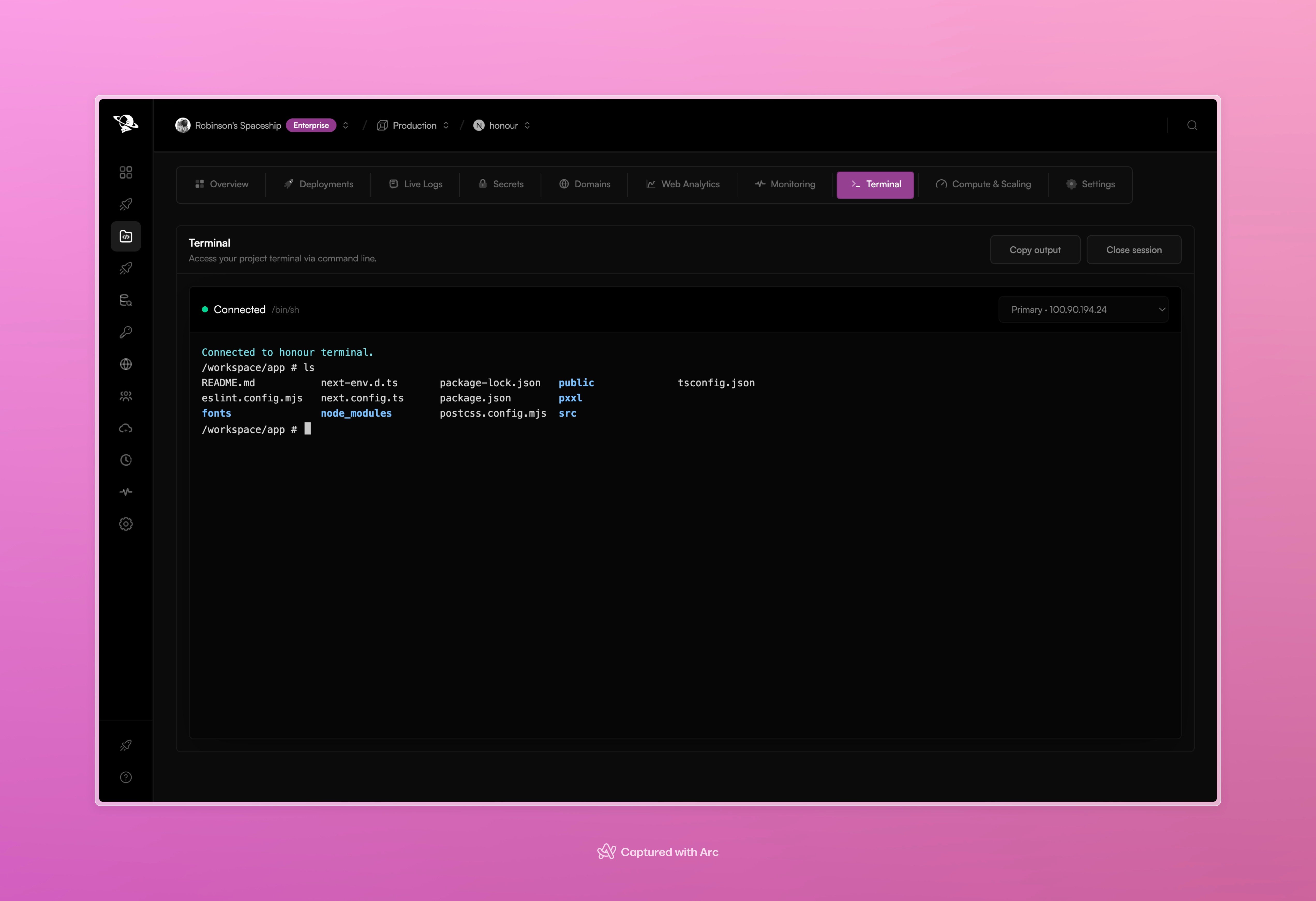
The **Terminal** tab opens a shell inside the active project runtime. It is useful for checking files, inspecting environment behavior, and confirming that a deployed process has the tools it needs.
 ## Start a session
1. Open the project and select **Terminal**.
2. Choose the runtime instance when more than one is available.
3. Wait for the session to show **Connected**.
4. Run read-only checks or the command you need.
5. Select **Close session** when you are finished.
Use **Copy output** when you need to share a command result with a teammate.
## What belongs in the terminal
The terminal is best for short-lived investigation:
* list deployed files
* inspect a generated build
* check the current working directory
* verify a runtime command
* inspect a service process
Changes made directly inside a running container are not a deployment strategy. Put lasting changes in the repository, project secrets, or a persistent volume, then deploy again.
## Access
Terminal availability depends on the workspace plan and project runtime. If the control is unavailable, use Live Logs, a new deployment, or the project configuration instead.
This documentation is built and hosted on [Mintlify](https://mintlify.com), a developer documentation platform.
## Start a session
1. Open the project and select **Terminal**.
2. Choose the runtime instance when more than one is available.
3. Wait for the session to show **Connected**.
4. Run read-only checks or the command you need.
5. Select **Close session** when you are finished.
Use **Copy output** when you need to share a command result with a teammate.
## What belongs in the terminal
The terminal is best for short-lived investigation:
* list deployed files
* inspect a generated build
* check the current working directory
* verify a runtime command
* inspect a service process
Changes made directly inside a running container are not a deployment strategy. Put lasting changes in the repository, project secrets, or a persistent volume, then deploy again.
## Access
Terminal availability depends on the workspace plan and project runtime. If the control is unavailable, use Live Logs, a new deployment, or the project configuration instead.
This documentation is built and hosted on [Mintlify](https://mintlify.com), a developer documentation platform.