

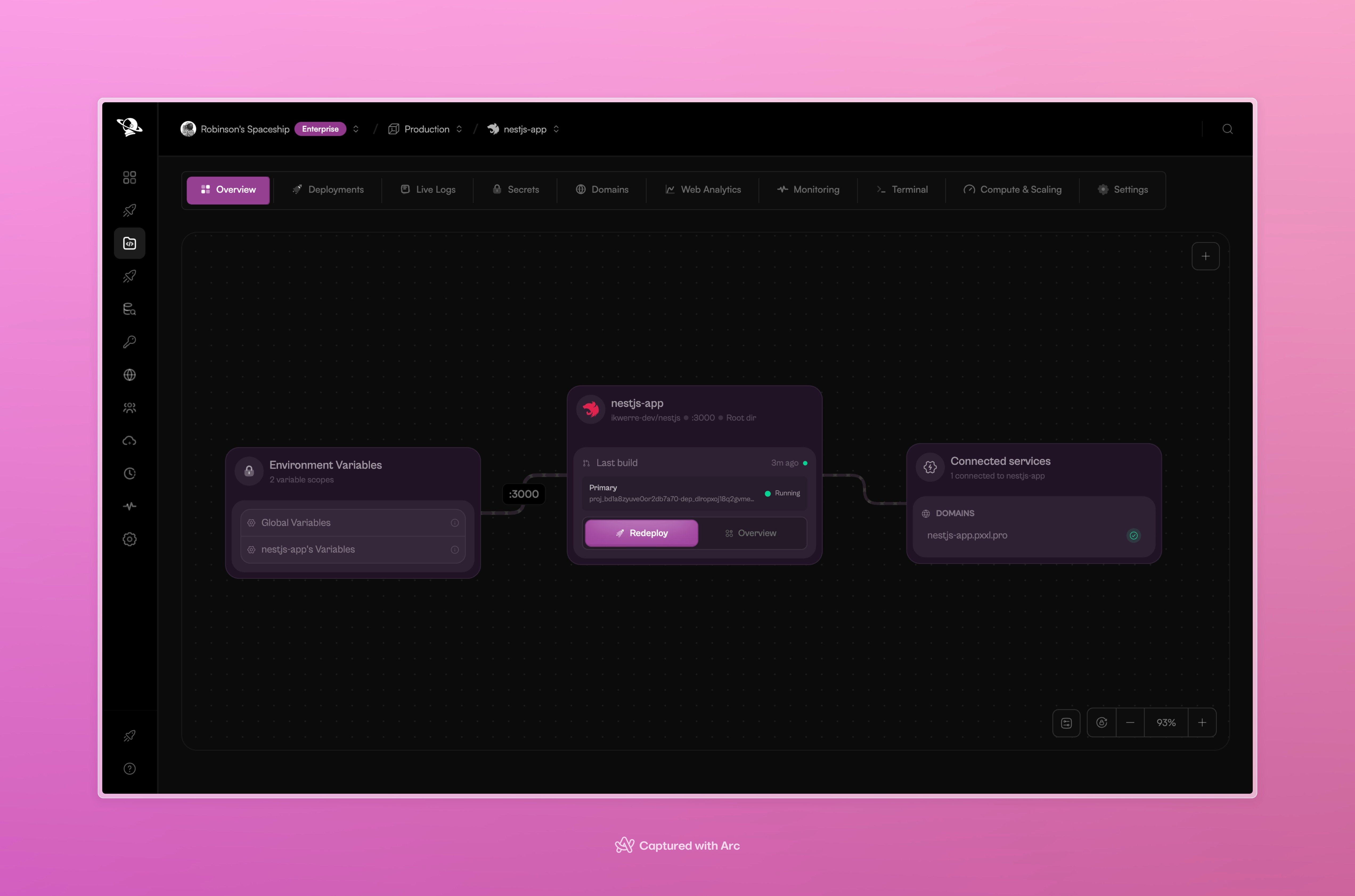
Project tabs
After each deploy, check Overview, then Deployments, then Live Logs. In a minute you know the new version is up, which commit it is, and that it started cleanly.
Logs, analytics, monitoring
- Live Logs shows what your app prints.
- Web Analytics shows what visitors and requests do.
- Monitoring shows CPU and memory use. Pick 24h, 48h, 72h, 7d, or 30d, and one replica or all of them.
Terminal
The Terminal tab opens a shell in the running container. Pick the replica if there’s more than one. Use it to look around: list files, check a build, run a quick command. Changes made in the terminal are lost on the next deploy. Put lasting changes in your code, your variables, or a volume.Compute & Scaling
Scale Up Server changes CPU, memory, and the number of replicas. The form shows your current values and your plan’s limit.Volumes
Add a volume when files must survive a redeploy or restart. A volume has a name and a mount path, such as/app/uploads. Clear deletes everything in it.